🌡️Heating & Cooling
▼
At the top of the tablet screen you'll see two thermostat badges - HVAC Main (main floor) and HVAC Master (upstairs). Tap either one to open its dial.

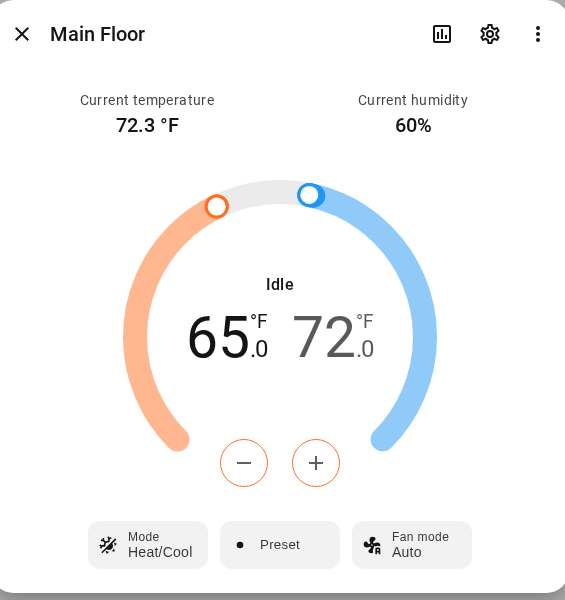
- Tap the HVAC Main or HVAC Master badge at the top of the tablet to open the dial.
- Drag the orange handle to set the heating temperature, the blue handle for cooling.
- Or use the + / - buttons to nudge it a degree at a time.
- Leave the mode on Heat/Cool (Auto) - the system picks heat or A/C automatically.
💡Lights & Fans
▼
On the tablet, lights and ceiling fans are grouped by room. Tap any tile to turn it on or off.
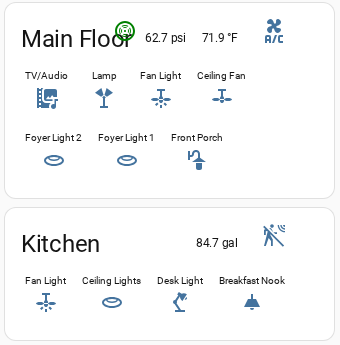
- Find the room card - Main Floor, Kitchen, etc.
- Tap a light or fan tile to toggle it. Lit-up tiles are on.
- Most exterior lights are on an automatic sunset timer - no need to touch them.
- Physical wall switches work too, anytime.
🔊Music & TV
▼
Everything audio & TV runs from the Media page on the wall tablet. Pick the topic below - each one opens with its own quick how-to.
🔊Speakers & Zones▼
Whole-home audio plays through speakers in the Living Room, on the Deck, and at the Dock.
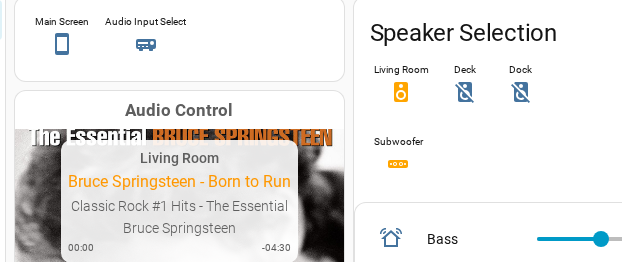
- Open the Media / Music page on the tablet.
- Choose your speaker zones - Living Room, Deck, Dock, or Subwoofer.
- Adjust volume and bass with the sliders.
🎵Record Player (Audio-Technica AT-LP60X)▼
This is a fully automatic turntable - it does all the delicate work for you. The #1 thing guests get wrong is trying to move the needle arm by hand. Don't. Just use the buttons and let it lower and lift itself.
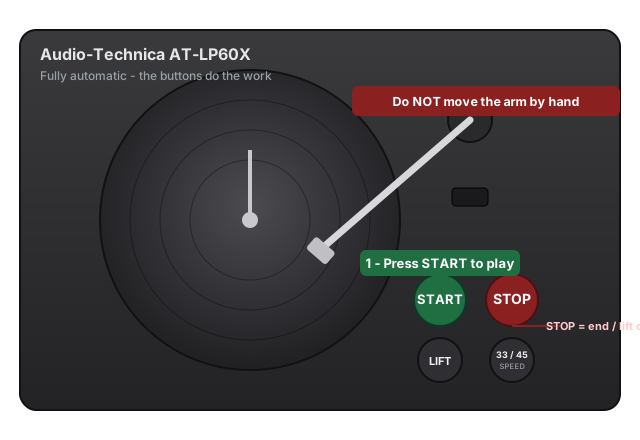
- On the tablet's Media page, tap Audio Input Select and choose the record player (so it plays through the house speakers).
- Lift the dust cover and set your record flat on the platter. For a small 45 with a big center hole, drop the 45 adapter over the spindle first.
- Set the speed with the speed button - 33 for standard LPs, 45 for singles (it's printed on the record label).
- Press the green START button. The arm lifts, swings over, and lowers itself onto the record automatically. Hands off - just wait.
- When the side ends, the arm returns and stops on its own. To stop early, press STOP and let it return by itself.
🎶Streaming Music (Spotify / Pandora)▼
Stream your own music straight to the house speakers - no cables, no Bluetooth pairing needed.
- Open Spotify or Pandora on your phone.
- Tap the device / cast button and pick Living Room as the playback device.
- Press play - it comes out the house speakers.
📺Watching TV▼
Use the Living Room TV card on the tablet, or the physical remote on the console.
- Turn on the TV with the remote or the tablet's Living Room TV card.
- For live channels, open YouTube TV.
- Want the sound through the house speakers? Tap Audio Input Select → TV on the Media page.
⚓Exterior & Dock
▼
On the tablet's home screen you'll find the Exterior / Security card. This is where the dock, deck, and landscape lighting live.
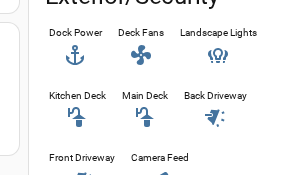
- Tap the Dock Power tile (anchor icon) to power up the dock. This turns on the water slide and the dock lights for the evening.
- Tap Landscape Lights to control the yard lighting - you can toggle specific sets on or off, and change their color and brightness.
- The Deck, Kitchen Deck, and driveway lights are also on this card if you want them on.
🎤Karaoke
▼
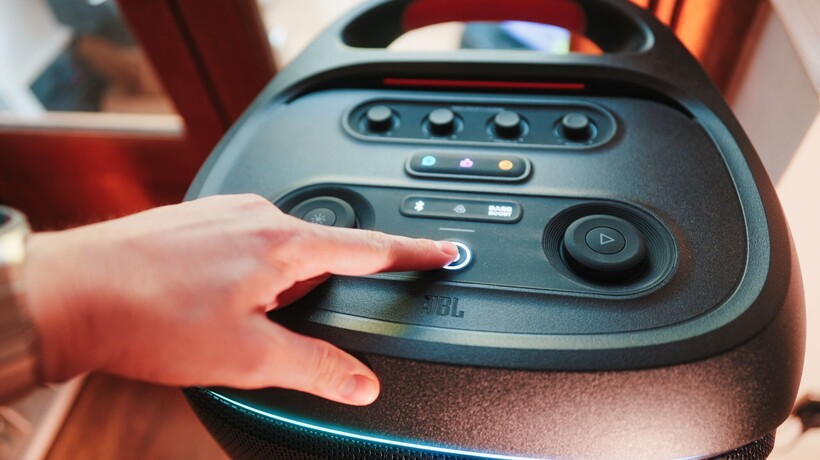
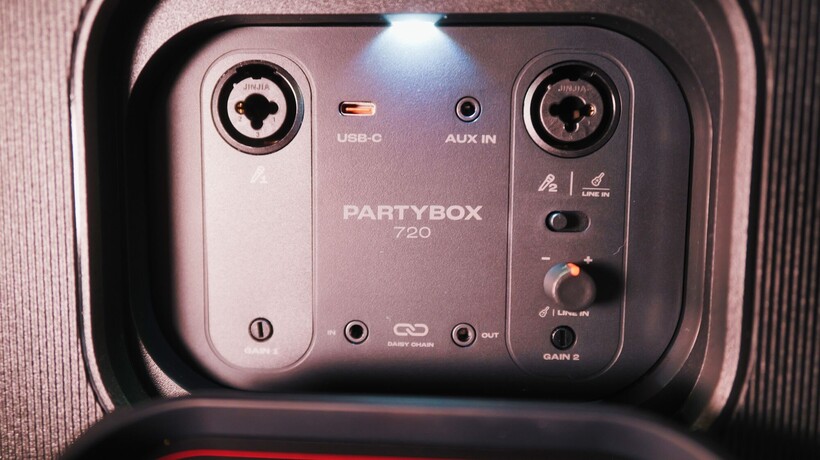
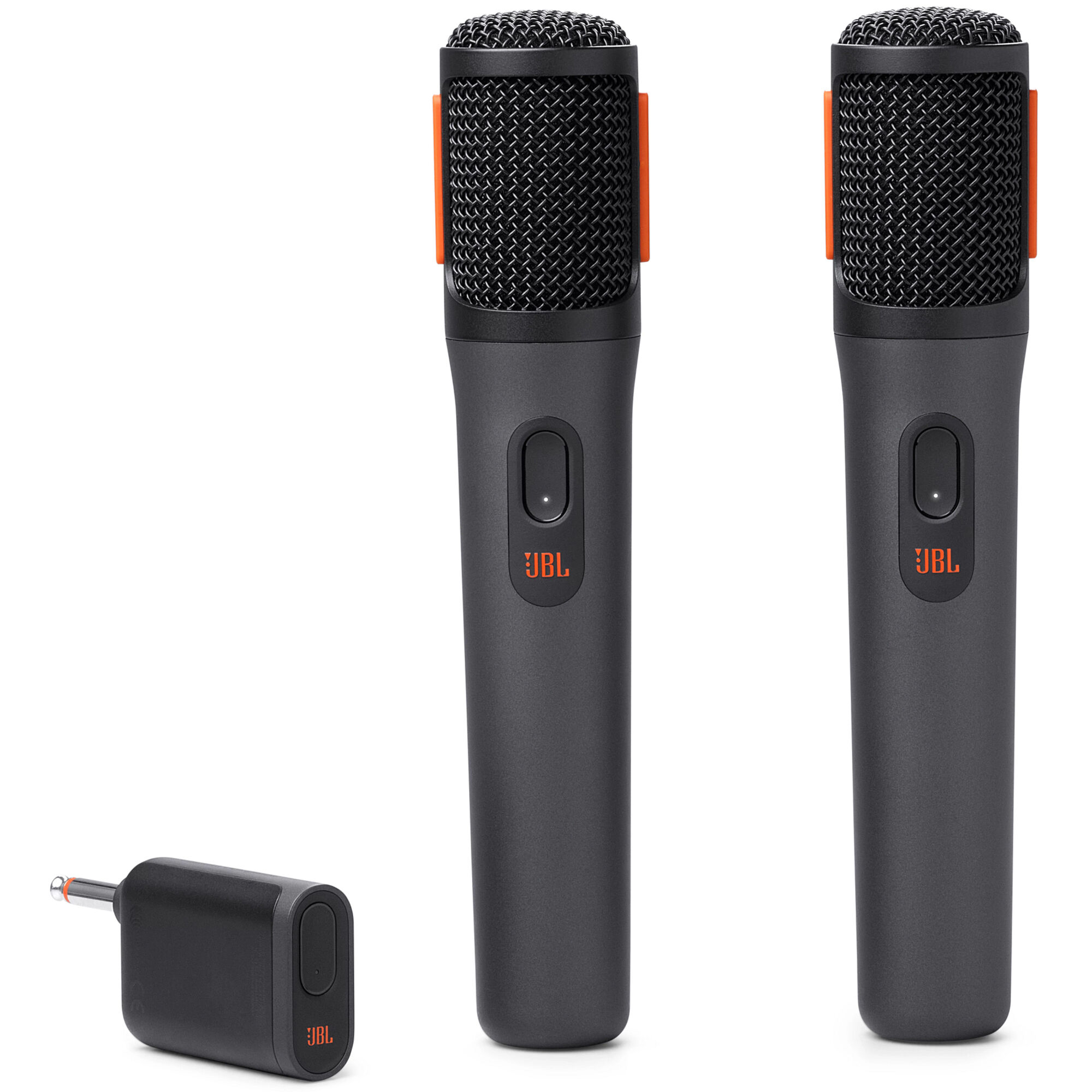
Ready to sing! Tap the button below and it'll turn on the Family Room TV, launch karaoke, and route the sound through the house speakers automatically.
⚙️Settings
▼
The gear icon at the top of the tablet opens the Settings page. You don't need to change anything here - it's mostly automatic - but here's what it does.
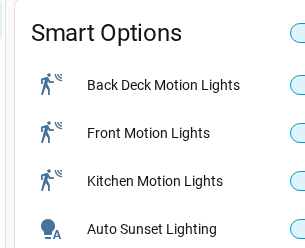
Smart Options is a set of automatic features that run the house for you:
- 🚶Back Deck Motion Lights - back deck lights turn on automatically when they sense movement.
- 🚶Front Motion Lights - front entry lights come on when someone approaches.
- 🚶Kitchen Motion Lights - kitchen lights turn on with motion.
- 🌇Auto Sunset Lighting - exterior lights switch on by themselves at sunset.
📊Sensor Info
▼
Some tiles double as live readouts for the house. You don't need to do anything with these - they're just there so you always know things are running normally. Here's what the little numbers and icons mean.
- 💧 Water pressure - the psi reading next to Main Floor is the home's live water pressure. Normal is roughly 50-70 psi.
- 🟢 Smoke alarm - the green indicator on the Main Floor card means the smoke detectors are online and all clear. Green is good.
- 🔒 Front door lock - the lock icon on the Exterior card shows whether the door is locked. You can tap it to lock or unlock.
- 📡 Internet speed - the download reading shows the current Wi-Fi/internet speed, so you can check the connection at a glance.
- 🚰 Water usage - the gallons reading on the Kitchen card tracks recent household water use.
- 🔥 Available hot water - the reading on the Master Bed card shows how much hot water is ready to go, handy before a shower.
Anything acting up? A quick restart of the wall tablet usually sorts it - or just text us.